Shark Clean

Shark Matrix Plus 2-in-1 Self-Empty Robot Vacuum & Mop RV2620WAUK

Shark Matrix Plus 2-in-1 Self-Empty Robot Vacuum & Mop RV2620WAUK

Sale price €269.99
Regular price €589.99
Lowest price in last 30 days €269.99
Sale Sold out
Taxes included. Shipping calculated at checkout.
The Shark Matrix Plus 2-in-1 Self-Empty Robot Vacuum and Mop combines suction power, sonic mopping, and self-emptying for a complete clean from start to finish. First, it’s a powerful whole home vacuum on carpets and floors that empties its own dustbin. Second, it’s a powerful vacuum that sonic mops hard floors at the same time. No cleaning detail is missed with corner and edge cleaning, a self-cleaning brush-roll for pet hair, and bagless base with Anti-Allergen Complete seal.
View full details
  • Features
  • Details
  • Specifications
  • What's Included
  • FAQs
  • User Guides
  • Accessories

Suction power + sonic mopping

Precision cleaning

Tackle stuck-on stains

Empties & charges itself

  • Powerful 2-in-1 robot vacuum and mop with self-empty base
  • Bagless base holds up to 60 days of dirt and debris
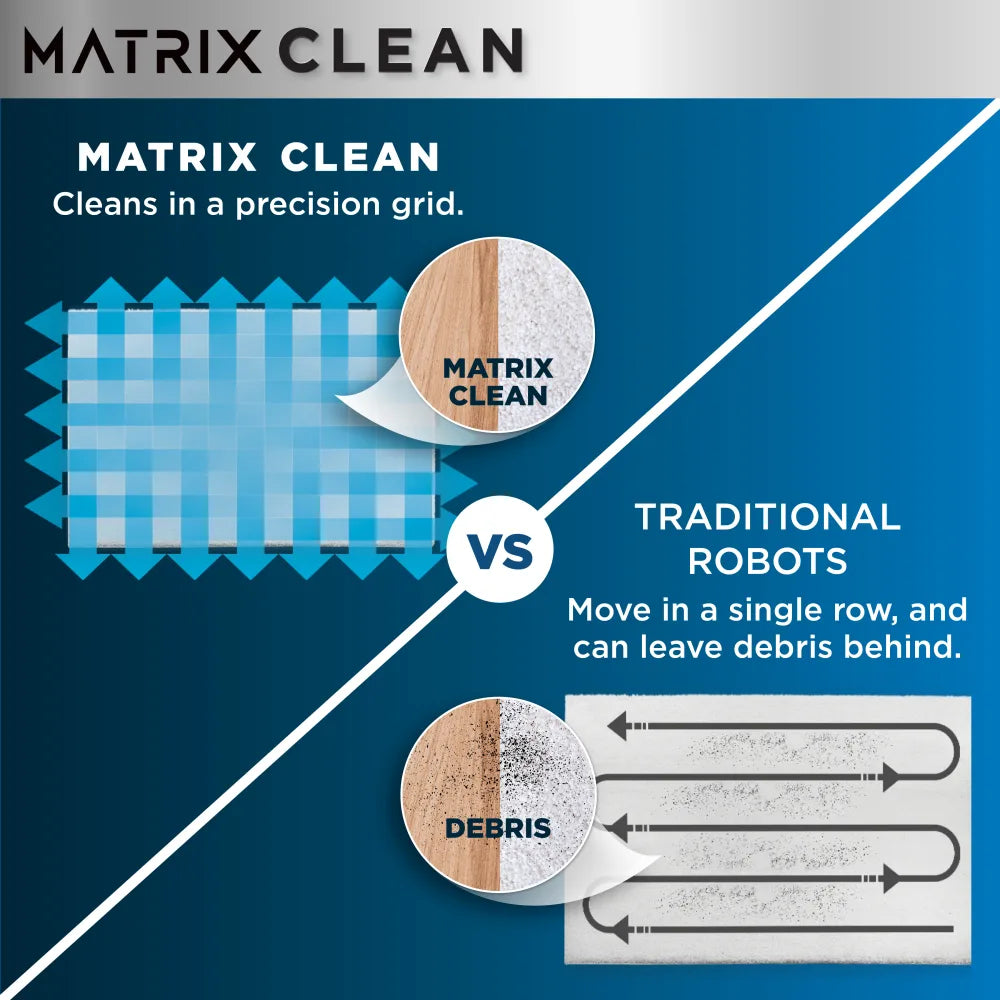
  • Cleans in a precision matrix grid for optimum coverage
  • Sonic mopping scrubs hard floors 100x per minute
  • Cleans edges and corners with blasts of air
  • Includes Shark Matrix Plus 2-in-1 Robot, Self-Empty Base, Self-Empty & Mop Attachments, Filter, Side Brush, 2 Microfibre Reusable Mopping Pads
  • Dimensions (Robot): W:34cm x D34cm x H14.5cm (Dock): W33.2cm x D22.7cm x H30cm. Weight: 7.58kg. Colour: Black/Silver.
  • 2-year guarantee upon registration with Shark (UK & ROI only)
Colour Black/Silver
Product Weight 7.58kg
Product Dimensions (cm) (Robot): W:34cm x D34cm x H14.5cm (Dock): W33.2cm x D22.7cm x H30cm
Barcode 622356298339
  • Main Unit
  • 1 x Auto Empty Dock
  • 2 x Side Brushes
  • 2 x Washable Mopping Pads

Collapsible content

How do I clean the filter in the robot and how often do I clean it?

Pull filter out of the dust bin by the tabs and lightly tap the filter to remove any debris. We recommend cleaning the filter every two months and replacing it every 6-12 months. You can purchase a replacement filter from sharkaccessories.com.

How do I empty the Vac & Mop 2-in-1 Dust Bin and how often should I empty it?

Empty theVac & Mop 2-in-1 Dust Bin after each use: 1. To remove the dust bin from the back of your robot, press the release button and slide out the bin. 2. Hold the dust bin over the trash. 3. Press and hold the release button again and lift open the dust bin lid. 4. Empty debris into the trash. 5. Clean the area between the filter and the plastic shield. 6. If a wash is desired, first remove the filter. Rinse the dust bin with water only and allow it to air-dry before reinstalling. Use caution when maintaining the Vac and Mop 2-in-1 Dust Bin.

Will my robot avoid carpets and rugs while mopping?

This can be done through setting up carpet verification in the SharkClean® app. To set up Carpet Verification, make sure to follow these steps in the app: 1. Your robot must complete an Explore Run without theVac & Mop 2-in-1 Dust Bin attached. 2. When your robot returns to the base, you can review the map in the app. If you are satisfied with the map, you can add carpet zones. 3. After you set up carpet zones, you can run Carpet Verification to verify whether the robot is honoring the carpet zones you manually placed. If you'd like to update the map at any time, you can delete the map and have the robot redo an Explore Run. The app will then ask if you want to send your robot on a Carpet Verification Run. 4. After the Carpet Verification Run, you can confirm or edit the carpet zones on the interactive map in the app.

How do I charge my robot?

Make sure the base has power. Place the robot on the base so that two metal pads on the bottom of the robot touches the metal contacts on the charging base. When the robot is placed correctly, it will begins to charge Note: Wait 5 seconds (or longer if the battery is depleted) to readjust the position of the robot on the base as it may take time for the robot to indicate it is charging. If your robot is still not charging, use a clean dry cloth to wipe clean the sensors and the charging pads on the bottom of the robot and the base and try again.

How do I create a map of my home and what is an Explore run?

To clean efficiently, your robot needs to learn the layout of your home. During its first run, called the Explore Run, your robot will create a map of your home. To start an Explore Run, make sure the robot is paired with the app, then follow the instructions on the app. (The app is set to automatically start an Explore Run after the robot is paired.) The Explore Run takes about 20 to 30 minutes to complete, based on the size of your home. Once complete, your robot will return to the dock and the app will display a map of your home. If the map accurately represents the layout of your home, select Approve to save the map.

Will my robot fall downstairs?

Your robot's cliff sensors will prevent it from falling off ledges. For the cliff sensors to work properly in any mode, all runners, rugs, or carpets must be at least 20cm from any stairs/steps.If needed, creating a no-go zone via the app will help create parameters.

Can I map multiple floors ?

No

Can my robot clean at night, in the dark?

Yes. Shark AI Laser Vision is not dependent on ambient lighting and can navigate your home at night or in low lighting conditions.

How do I download and use the SharkClean® app?

For Apple: 1. Tap on the App Store icon- 2. Search the Apple App Store for ""SharkClean®"". 3. Tap on the SharkClean® app. 4. Tap Install on the next page. Installation should begin. For Android: 1. Tap on the Play Store icon in the Play Store- 2. Search for ""SharkClean®."" 3. Tap on the SharkClean® app. 4. Tap install on the Shark app page. Installation should begin.
 

Features

Suction power + sonic mopping

Precision cleaning

Tackle stuck-on stains

Empties & charges itself


Details

  • Powerful 2-in-1 robot vacuum and mop with self-empty base
  • Bagless base holds up to 60 days of dirt and debris
  • Cleans in a precision matrix grid for optimum coverage
  • Sonic mopping scrubs hard floors 100x per minute
  • Cleans edges and corners with blasts of air
  • Includes Shark Matrix Plus 2-in-1 Robot, Self-Empty Base, Self-Empty & Mop Attachments, Filter, Side Brush, 2 Microfibre Reusable Mopping Pads
  • Dimensions (Robot): W:34cm x D34cm x H14.5cm (Dock): W33.2cm x D22.7cm x H30cm. Weight: 7.58kg. Colour: Black/Silver.
  • 2-year guarantee upon registration with Shark (UK & ROI only)
 

Specifications

Colour Black/Silver
Product Weight 7.58kg
Product Dimensions (cm) (Robot): W:34cm x D34cm x H14.5cm (Dock): W33.2cm x D22.7cm x H30cm
Barcode 622356298339
 

What's Included

  • Main Unit
  • 1 x Auto Empty Dock
  • 2 x Side Brushes
  • 2 x Washable Mopping Pads
 

FAQs

How do I clean the filter in the robot and how often do I clean it?

Pull filter out of the dust bin by the tabs and lightly tap the filter to remove any debris. We recommend cleaning the filter every two months and replacing it every 6-12 months. You can purchase a replacement filter from sharkaccessories.com.

How do I empty the Vac & Mop 2-in-1 Dust Bin and how often should I empty it?

Empty theVac & Mop 2-in-1 Dust Bin after each use: 1. To remove the dust bin from the back of your robot, press the release button and slide out the bin. 2. Hold the dust bin over the trash. 3. Press and hold the release button again and lift open the dust bin lid. 4. Empty debris into the trash. 5. Clean the area between the filter and the plastic shield. 6. If a wash is desired, first remove the filter. Rinse the dust bin with water only and allow it to air-dry before reinstalling. Use caution when maintaining the Vac and Mop 2-in-1 Dust Bin.

Will my robot avoid carpets and rugs while mopping?

This can be done through setting up carpet verification in the SharkClean® app. To set up Carpet Verification, make sure to follow these steps in the app: 1. Your robot must complete an Explore Run without theVac & Mop 2-in-1 Dust Bin attached. 2. When your robot returns to the base, you can review the map in the app. If you are satisfied with the map, you can add carpet zones. 3. After you set up carpet zones, you can run Carpet Verification to verify whether the robot is honoring the carpet zones you manually placed. If you'd like to update the map at any time, you can delete the map and have the robot redo an Explore Run. The app will then ask if you want to send your robot on a Carpet Verification Run. 4. After the Carpet Verification Run, you can confirm or edit the carpet zones on the interactive map in the app.

How do I charge my robot?

Make sure the base has power. Place the robot on the base so that two metal pads on the bottom of the robot touches the metal contacts on the charging base. When the robot is placed correctly, it will begins to charge Note: Wait 5 seconds (or longer if the battery is depleted) to readjust the position of the robot on the base as it may take time for the robot to indicate it is charging. If your robot is still not charging, use a clean dry cloth to wipe clean the sensors and the charging pads on the bottom of the robot and the base and try again.

How do I create a map of my home and what is an Explore run?

To clean efficiently, your robot needs to learn the layout of your home. During its first run, called the Explore Run, your robot will create a map of your home. To start an Explore Run, make sure the robot is paired with the app, then follow the instructions on the app. (The app is set to automatically start an Explore Run after the robot is paired.) The Explore Run takes about 20 to 30 minutes to complete, based on the size of your home. Once complete, your robot will return to the dock and the app will display a map of your home. If the map accurately represents the layout of your home, select Approve to save the map.

Will my robot fall downstairs?

Your robot's cliff sensors will prevent it from falling off ledges. For the cliff sensors to work properly in any mode, all runners, rugs, or carpets must be at least 20cm from any stairs/steps.If needed, creating a no-go zone via the app will help create parameters.

Can I map multiple floors ?

No

Can my robot clean at night, in the dark?

Yes. Shark AI Laser Vision is not dependent on ambient lighting and can navigate your home at night or in low lighting conditions.

How do I download and use the SharkClean® app?

For Apple: 1. Tap on the App Store icon- 2. Search the Apple App Store for ""SharkClean®"". 3. Tap on the SharkClean® app. 4. Tap Install on the next page. Installation should begin. For Android: 1. Tap on the Play Store icon in the Play Store- 2. Search for ""SharkClean®."" 3. Tap on the SharkClean® app. 4. Tap install on the Shark app page. Installation should begin.
 

Accessories